
What Is Salesforce Integration?
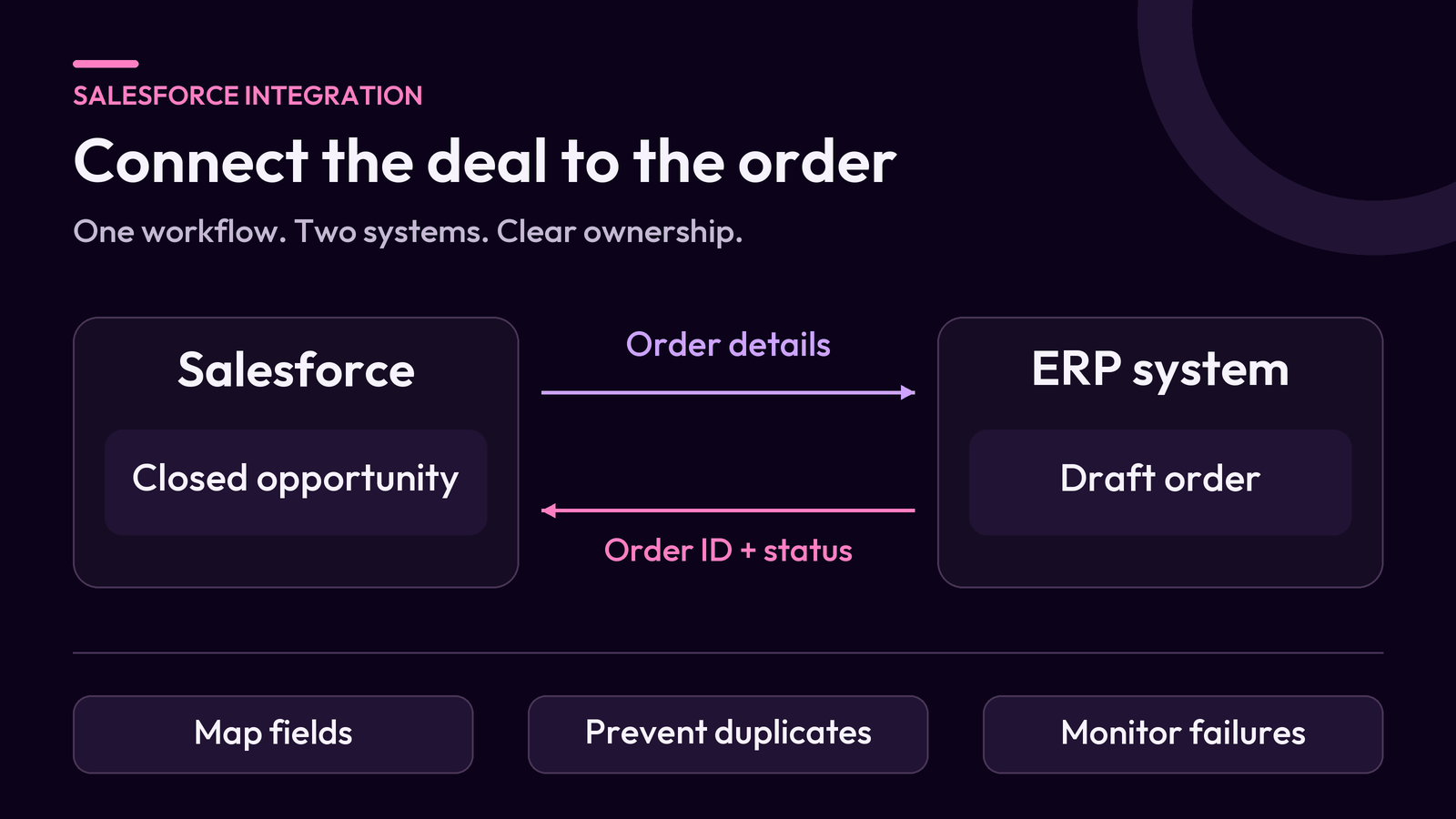
Salesforce integration connects Salesforce to another application, database, or system so they can exchange data, trigger actions, or display information across tools. For example, an integration can create a draft order in an enterprise resource planning (ERP) system when a sales rep closes a deal, then send the order number back to Salesforce.
Some connections need to respond while a user is working. Others can process records in the background or on a schedule. The right setup depends on which system owns the data, how quickly it needs to move, and what should happen when a transfer fails.
How Does Salesforce Integration Work?
A Salesforce integration starts with an event, a schedule, or a request from a user or application. It identifies the relevant records, checks the data, and maps the fields that the receiving system needs. The receiving system then creates, updates, or returns information. The integration records the outcome so the team can follow up on errors.
Inbound integration brings a request or data into Salesforce, such as a website form sending a lead. Outbound integration sends a request or data from Salesforce, such as asking an ERP system to create an order. A workflow can use both directions when one system sends a request and the other later returns an update.
Assign a source of truth for each shared field. Salesforce might own the opportunity stage, while the ERP system owns the order status. Clear ownership gives each system a rule for handling conflicting updates.
What Does Salesforce Integrate With?
Salesforce can connect to systems that manage orders, billing, support, marketing, or reporting. Common use cases include the following.
- ERP and accounting systems. Send approved order details and receive invoice or fulfillment status.
- E-commerce platforms. Bring customer and order data into Salesforce so service teams can answer order questions.
- Email, calendars, and marketing platforms. Connect activities or campaign information to CRM records when the integration supports those actions.
- Support platforms. Share ticket updates or account details between customer service tools.
- Data warehouses and reporting tools. Send CRM data for analysis alongside financial or operational data.
Before choosing a connector, check the records and fields it supports, the direction data can move, its update frequency, and any edition or permission requirements. An integration listing can help you find an option, and the supported actions determine whether it fits your workflow.
What Are The Main Types Of Salesforce Integration?
Integration patterns describe when data moves and how the systems interact. A single workflow can use several patterns.
| Pattern | How It Works | Example |
|---|---|---|
| Request and response | One system sends a request and waits for the result. | A rep checks current inventory while preparing a quote. |
| Event-driven integration | A system publishes a change or business event for subscribers to process. | An account update notifies a reporting platform in the background. |
| Scheduled batch sync | A job transfers or updates groups of records at set times. | An overnight job refreshes invoice statuses in Salesforce. |
| Data virtualization | Salesforce retrieves records from a supported external source when users need them. | A rep views external order records through Salesforce Connect. |
Choose the timing based on what the user or downstream process needs. Inventory may need a response during a quote, while historical invoice data may be current enough after an overnight run.
What Is API Integration In Salesforce?
API integration uses an application programming interface to let software read or update Salesforce data, call supported actions, or exchange events. An external application can call a Salesforce API. Salesforce can also make an outbound call to another system’s API.
- REST API supports operations such as querying, creating, and updating Salesforce records.
- Bulk API 2.0 processes large groups of records as jobs that the calling system can check after submission.
- Pub/Sub API supports publishing or subscribing to Salesforce events according to the event type. An application can subscribe to Change Data Capture to receive notifications about supported record changes.
You can use a supported connector, middleware, or custom code to implement a connection. A connector is a good starting point when it covers the records, actions, and timing you need. Middleware can help when several systems need data mapping, routing, retries, or shared monitoring. A custom connection gives the development team control over how the workflow handles specialized requirements.
How Do You Integrate Salesforce With An External System?
Start with one workflow and define the outcome each system should produce. Use these steps to scope the connection.
- Define the trigger and result. Specify whether a record change, a schedule, or a user request starts the transfer. Decide what result counts as success.
- Map fields and record identifiers. Agree which system owns each field and which values need conversion. Use stable identifiers, such as a shared customer ID, to match records.
- Choose a pattern and a tool. Decide how quickly data needs to move. Check whether a supported connector covers the workflow, then consider middleware or custom development where required.
- Set up authentication and access. Follow the API’s authentication requirements and grant the integration identity the access it needs. For Salesforce callouts, Named Credentials and External Credentials help manage the destination and authentication settings.
- Test the successful and failed paths. Use representative sample records in a test environment. Check missing fields, restricted access, duplicate requests, and timeouts alongside the expected result.
- Monitor the connection after release. Assign someone to review failures. Record which items ran successfully, which need attention, and how the owner can reconcile differences between systems.
If this connection is part of a wider CRM rollout, map it alongside the data and testing work in your Salesforce implementation plan.
What Does A Salesforce Integration Look Like In Practice?
Suppose a sales team needs one draft ERP order for each closed opportunity. Salesforce owns the deal details, and the ERP system owns the order number and fulfillment status.
- When the opportunity closes, the integration sends the opportunity ID, customer identifier, product SKUs, quantities, and any other required order fields.
- The ERP system checks the customer and products, creates the draft order, and returns its order ID. Salesforce stores that ID on the opportunity.
- When the ERP system updates the order, Salesforce receives the relevant status so the sales team can track fulfillment.
Use a stable request key based on the opportunity ID for this one-order workflow. Configure the ERP system to match repeat requests with that key to the existing order. If a request times out after the ERP accepts it, check for an order with the same key before retrying. If a SKU fails validation, send that record to a review queue with the reason it failed.
Test this example with a valid order, an unknown SKU, and a timed-out request that the ERP already processed. Those cases show whether the integration can match records and recover safely after a failure.
For more on who builds and tests custom connections, see our guide to what a Salesforce developer does.
How Do You Check Integrations In Salesforce?
Start by identifying how the connection runs, then follow one record from the source to the destination.
- Find the connection. Review the app registration and permissions for inbound OAuth connections. For outbound callouts, look up Named Credentials in Setup and identify the Flow or Apex code that uses the connection.
- Open the relevant run history. Check the connector or middleware logs, or the applicable Salesforce job or Flow error records. Find the most recent successful run, the failed item, and the recorded reason.
- Verify a record in both systems. Compare the shared identifier, the fields that should have changed, and their update times. An order ID on the Salesforce opportunity and the same ID in the ERP are a useful check in the order example.
- Resolve the cause and verify recovery. Correct the mapping, access, or data issue, then retry the affected item using its existing identifier. Confirm that the systems agree after the retry.
Keep the integration owner, the expected run schedule, and the location of its logs in the handover notes. That information helps the team distinguish a delayed run from a failed transfer.
Can You Integrate Salesforce Without Writing API Code?
Yes. A supported connector or a configured middleware workflow can handle the exchange through its available actions. Teams can also transfer files for scheduled imports and exports when that timing suits the workflow. Many configured connectors use APIs internally, so check their permission and data requirements before enabling them.
How Can You Learn Salesforce Integration?
Start with a test org and a small set of sample records. Practice reading an account through the API, updating a field, and checking the result in Salesforce. Then try a record that fails validation and trace where the error appears. Move on to bulk jobs or events once you can explain what triggered a transfer and how you confirmed it completed.
For help mapping a workflow, choosing a connection, or planning how to monitor it, see our Salesforce Integration & Automation services.